


Contact Us
We're here for you.

-
Call Us
Racine: (262) 886-5900
Toll-Free: (800) 236-5898
M-F 8:00 a.m. to 6:00 p.m. CST
Sat 8:00 a.m. to 1:00 p.m. CST -
Educators Connect Cam™
Speak with a local member finance representative from one of our 23 branches virtually on your laptop, desktop or mobile device.
M-F 8:30 a.m. to 5:00 p.m. CST
Sat 9:00 a.m. to 12 p.m. CSTClick the “Let’s Connect” toggle on the right to get started.
-
Let's Connect - Chat
Instant message with a local member response specialist through desktop, laptop or mobile device.
M-F 8:00 a.m. to 6:00 p.m. CST
Sat 8:00 a.m. to 1:00 p.m. CSTClick the “Let’s Connect” toggle on the right to get started.
-
ASK EVA®
Use ASK EVA® to quickly check account balances, make transfers and pay loans using voice or keypad commands.
Toll-Free: (800) 236-3168
-
EMMA
EMMA, Educators’ virtual specialist, is available to assist you 24/7. She can answer frequently asked questions, complete and review simple account transactions, and provide general information about Educators products.
Call (262) 886-5900 and press number five or click the ‘Let’s Chat’ toggle on the right to get started.
-
Mailing
Educators Credit Union
PO Box 081040
Racine, WI 53408Educators Credit Union
321 SE Frontage Road
Mt. Pleasant, WI 53177 -
SCHEDULE A BRANCH APPOINTMENT
Ready to complete a loan application or open an account and prefer in-person assistance?
You can book an appointment here.
-
CREDIT CARD ASSISTANCE
After Hours Support:
Lost or Stolen ATM, Debit & Credit Cards: (800) 236-5898
Lost/Stolen (Voice Recognition Unit): (800) 472-3272
More Options
Fill out the following form1
1This email link is provided for your convenience. Email is not secure and information can be read by others. Do not e-mail information such as passwords, social security numbers, account numbers, mother’s maiden name, etc.
Frequently Asked Questions
For security purposes, we do not display account numbers for the following account types:
- Health Savings Accounts (HSAs)
- Saver’s Sweepstakes
- Change Up Savings
- Share Certificate (CDs)
We also cannot provide account numbers via email. If you need to locate one of these types of account numbers, contact us or stop by a local branch.
You can follow these steps to locate your account number¹ in Online Banking or the Mobile App:
- Log in to Online Banking or the Mobile App
- Select the Share Account (savings or checking share) that you want to view
- If you’re using the mobile app, tap Menu>Accounts first
- Select the Account Details tab to see your account number
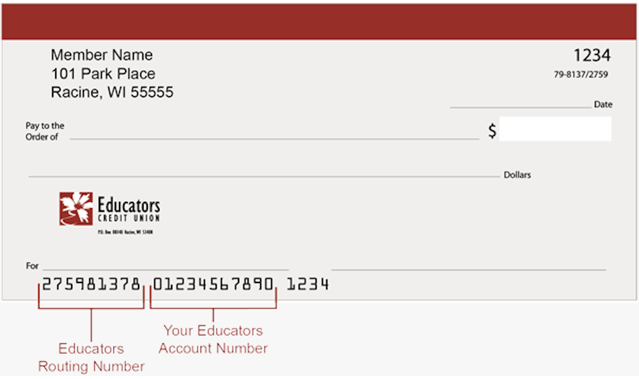
Your Checking Account number is also located at the bottom of your checks as shown below:
For further assistance, check out our online banking video tutorial Finding Your Account Number, or try out our Interactive Demo in our Digital Academy Platform.
If you’re using the Mobile App, see our Mobile Video Tutorial or Interactive Demo in Digital Academy.
Click or tap the Forgot Password? button on the Online Banking login screen or the mobile app login screen. Follow the steps to verify your identity and reset your password* to unlock your account. You will need your:
- Username
- Social Security Number
- Either one of the following
- Member Number
- Driver’s License Number
For further assistance, begin a video banking call with an Educator’s representative or call 262.886.5900.
*Passwords must be at least 8 characters long and contain a Capital letter, a lowercase letter, a number, and an optional special character
*If you need help with your username you’ll need to speak to a representative. Please reach out by calling the number above or choosing the “begin a video banking call” link.
Keep your finances safe
Educators will help you stay current on common fraud attacks and safe practices, while making sure your accounts are safe, secure, and protected.
Our Routing Number is 275981378.
You can also login to the Mobile App and tap More–our Routing Number will be listed.
Routing numbers are also located at the bottom of our homepage or at the bottom left-hand corner of your checks as shown below:
For further assistance, check out our Digital Academy video tutorial Locating ECU’s Routing Number, or try out our Interactive Demo.
If you’re using the Mobile App, check out our Mobile Banking Video Tutorial or Interactive Demo in our Digital Academy.
You can use these steps to order checks through Online Banking:
- Log in to Online Banking
- Select Accounts
- Select Check Services
- Select the Reorder Checks tab
- Select Order Checks
- Select Personalize
- Select On or Off for FraudARMOR+ (there is a fee of $4.49 per box for this benefit)
- Select Continue
- Select Add to Cart
- Select Proceed to Checkout
- Select Submit Order to complete your order
For further assistance, watch our Online Banking Video Tutorial, or try out our Interactive Demo in our Digital Academy Platform.
If you’re using the Mobile App:
- Log in to the app
- Select More
- Choose Educators Full Sites
- Use the steps above to order your checks
For further assistance, watch our Mobile Banking Video Tutorial or try out our Demo through Digital Academy.
Zelle® is only available on the Mobile App. This feature is not available through online banking (Desktop Version).
You can send, request, or receive money with Zelle®. To get started, log into Educators Credit Union’s mobile app and select MORE, TRANSFER&PAY, and then Zelle®. Following the prompts, enter the information requested, accept the terms and conditions, and you’re ready to start sending and receiving with Zelle®.
To send money using Zelle®, simply select someone from your mobile device’s contacts (or add a trusted recipient’s email address or U.S. mobile phone number), add the amount you’d like to send and an optional note, review, then hit Send. In most cases, the money is available to your recipient in minutes¹.
To request money using Zelle®, choose Request, select the individual from whom you’d like to request money, enter the amount you’d like to request, include an optional note, review and hit Request². If the person you are requesting money from is not yet enrolled with Zelle®, you must use their email address to request money. If the person has enrolled their U.S. mobile number, then you can send the request using their mobile phone number.
To receive money, just share your enrolled email address or U.S. mobile phone number with a friend and ask them to send you money with Zelle®. If you have already enrolled with Zelle®, you do not need to take any further action. The money will be sent directly into your Educators Credit Union account, typically within minutes¹.
To learn more about how to use Zelle®, check out our video tutorials and interactive demos through our Digital Academy.
If you do not see the Zelle® Option on your Mobile Banking App, please contact us or stop by a local branch for assistance.
Take your finances with you wherever you go
With our Mobile Banking app, you can check account history, transfer funds, pay bills, make loan payments, use budget tools and reach savings goals.


Please visit our Mobile Banking page to learn more.
Yes, Overdraft Privilege is available on standard Checking but some restrictions may apply. Refer to our Overdraft Privilege Policy for more information.
Sign up for overdraft protection
Member overdraft privilege is offered so you can have peace of mind with every transaction.
To view your statements digitally:
- Log in to Online Banking
- Hover over Accounts in the menu
- Choose eDocs
- Select the Statements tab
- Click the statement you would like to view
- Filters available to narrow down searching
Take your finances with you wherever you go
With our Mobile Banking app, you can check account history, transfer funds, pay bills, make loan payments, use budget tools and reach savings goals.
Learn more about Mobile Banking here.
You can order a new personal debit card with Card Management through Online and Mobile Banking! Follow the steps displayed below.
To order a business debit card for your business account, fill out the Debit Card Application online, get an instant-issued card at any Educators branch, or call 262.886.5900 to have one mailed to you.
| Order a Personal Debit Card Through Online Banking | Order a Personal Debit Card Through Mobile Banking |
|
|
If your card has been lost or stolen, contact a member service representative immediately at (262) 886-5900 or toll-free (800) 236-5898 during business hours, or at (800) 472-3272 after hours.