


Digital Academy
Tutorials to help you navigate our digital services.

Welcome to Digital Academy!
In our Digital Academy, you will find a full library of video tutorials and demonstrations to help you manage all aspects of our digital services.
Featured Tutorial
Tired of having to call, stop, or log in to check your balances or check to see if a transfer went through? Then check out this video that goes over our alerts widget in Online Banking. You’ll love how easy it is!
-
Getting ready for tax season?
Learn how to find your full account number to avoid any problems receiving your return.
-
Want to redeem your uChoose Rewards®?
Learn how to redeem your uChoose Rewards® for cash back, gift cards, travel and more!
-
NEW TO ONLINE AND MOBILE BANKING?
Do you have questions about how to log in, set up alerts, or locate account, or find routing numbers? We’ve got you covered with Digital Academy!
-
Need help with Business Banking?
Set up ACH payees and templates for your business with these short tutorials.
-
WANT TO EASILY MANAGE YOUR CARD?
Prepare for upcoming travel, reset your PIN, replace a damaged card, and learn all about uChoose Rewards® with the Card Management widget.
-
QUESTIONS ABOUT ONLINE PAYMENTS AND TRANSFERS?
Find out how to transfer money to other Educators members.
-
NEED TO VIRTUALLY DEPOSIT A CHECK OR ORDER CHECKS?
Did you know you can deposit checks right from your phone with FlashCash? Learn the tips and tricks on how to successfully deposit a check and order checks.
-
READY TO SEND MONEY WITH ZELLE®?
Sending money to friends, family and people you trust is easy! Learn all about how to conveniently send and receive money with Zelle®.
Frequently Asked Questions
For security purposes, we do not display account numbers for the following account types:
- Health Savings Accounts (HSAs)
- Saver’s Sweepstakes
- Change Up Savings
- Share Certificate (CDs)
We also cannot provide account numbers via email. If you need to locate one of these types of account numbers, contact us or stop by a local branch.
You can follow these steps to locate your account number¹ in Online Banking or the Mobile App:
- Log in to Online Banking or the Mobile App
- Select the Share Account (savings or checking share) that you want to view
- If you’re using the mobile app, tap Menu>Accounts first
- Select the Account Details tab to see your account number
Your Checking Account number is also located at the bottom of your checks as shown below:
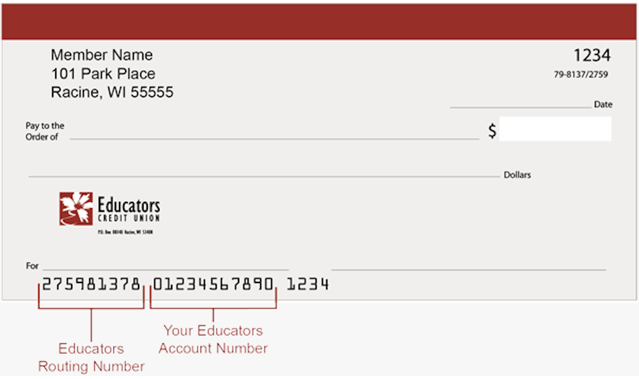
For further assistance, check out our online banking video tutorial Finding Your Account Number, or try out our Interactive Demo in our Digital Academy Platform.
If you’re using the Mobile App, then see our Mobile Video Tutorial or Interactive Demo in Digital Academy.
Click or tap the Forgot Password? button on the Online Banking login screen or the mobile app login screen. Follow the steps to verify your identity and then reset your password* to unlock your account. You will need your:
- Username
- Social Security Number
- Either one of the following
- Member Number
- Driver’s License Number
For further assistance, begin a video banking call with an Educator’s representative.
*Passwords must be at least 8 characters long and contain a Capital letter, a lowercase letter, a number, and an optional special character
*If you need help with your username, then you’ll need to speak to a representative. Please reach out by calling the number above or choosing the “begin a video banking call” link.
Our Routing Number is 275981378.
You can use these steps to order checks through Online Banking:
- Log in to Online Banking
- Select Accounts
- Select Check Services
- Select the Reorder Checks tab
- Select Order Checks
- Select Personalize
- Select On or Off for FraudARMOR+ (there is a fee of $4.49 per box for this benefit)
- Select Continue
- Select Add to Cart
- Select Proceed to Checkout
- Select Submit Order to complete your order
For further assistance, watch our Online Banking Video Tutorial, or try out our Interactive Demo in our Digital Academy Platform.
If you’re using the Mobile App:
- Log in to the app
- Select More
- Choose Educators Full Sites
- Use the steps above to order your checks
For further assistance, watch our Mobile Banking Video Tutorial.
Zelle® is only available on the Mobile App.
This feature is not available through online banking (Desktop Version).
You can send, request, or receive money with Zelle®. To get started, log into Educators Credit Union’s mobile app and select MORE, TRANSFER&PAY, and then Zelle®. Following the prompts, enter the information requested, accept the terms and conditions, and then you’re ready to start sending and receiving with Zelle®.
To send money using Zelle®, simply select someone from your mobile device’s contacts (or add a trusted recipient’s email address or U.S. mobile phone number), add the amount you’d like to send and an optional note, review, then hit Send. In most cases, the money is available to your recipient in minutes¹.
To request money using Zelle®, choose Request, select the individual from whom you’d like to request money, enter the amount you’d like to request, include an optional note, review and hit Request². If the person you are requesting money from is not yet enrolled with Zelle®, you must use their email address to request money. If the person has enrolled their U.S. mobile number, then you can send the request using their mobile phone number.
To receive money, just share your enrolled email address or U.S. mobile phone number with a friend and ask them to send you money with Zelle®. If you have already enrolled with Zelle®, you do not need to take any further action. The money will be sent directly into your Educators Credit Union account, typically within minutes¹.
To learn more about how to use Zelle®, check out our video tutorials.
If you do not see the Zelle® Option on your Mobile Banking App, please contact us or stop by a local branch for assistance.
Yes, Overdraft Privilege is available on standard Checking but some restrictions may apply. Refer to our Overdraft Privilege Policy for more information.
To view your statements digitally:
- Log in to Online Banking
- Hover over Accounts in the menu
- Choose eDocs
- Select the Statements tab
- Click the statement you would like to view
- Filters available to narrow down searching
You can order a new personal debit card with Card Management through Online and Mobile Banking! Follow the steps displayed below.
To order a business debit card for your business account, fill out the Debit Card Application online, then get an instant-issued card at any Educators branch, or call 262.886.5900 to have one mailed to you.
Order a Personal Debit Card Through Online Banking
- Log in to Online Banking
- Click More
- Click Card Management
- Click on the Card that is Damaged to be Replaced
- Click Replace Damaged Card
- Click the Report as Damaged Button
- Click Yes, Report as Damaged to Complete the Process
Order a Personal Debit Card Through Mobile Banking
- Log in to the Mobile App
- Tap the Menu
- Tap Card Management
- Scroll Right to View All Cards – Tap Replace Damaged Card
- Tap Damaged
- Tap Report As Damaged
- Tap Yes, Report as Damaged to Complete the Process
Disclosures
Zelle® and the Zelle® related marks are wholly owned by Early Warning Services, LLC and are used herein under license.
Featured Tutorial: Educators Credit Union relies solely on the account number for deposits/payments. If an error is made by the IRS they will work on getting your return to you. If you’ve made an error on your form regarding your account, you’ll need to put a claim through with the IRS.